


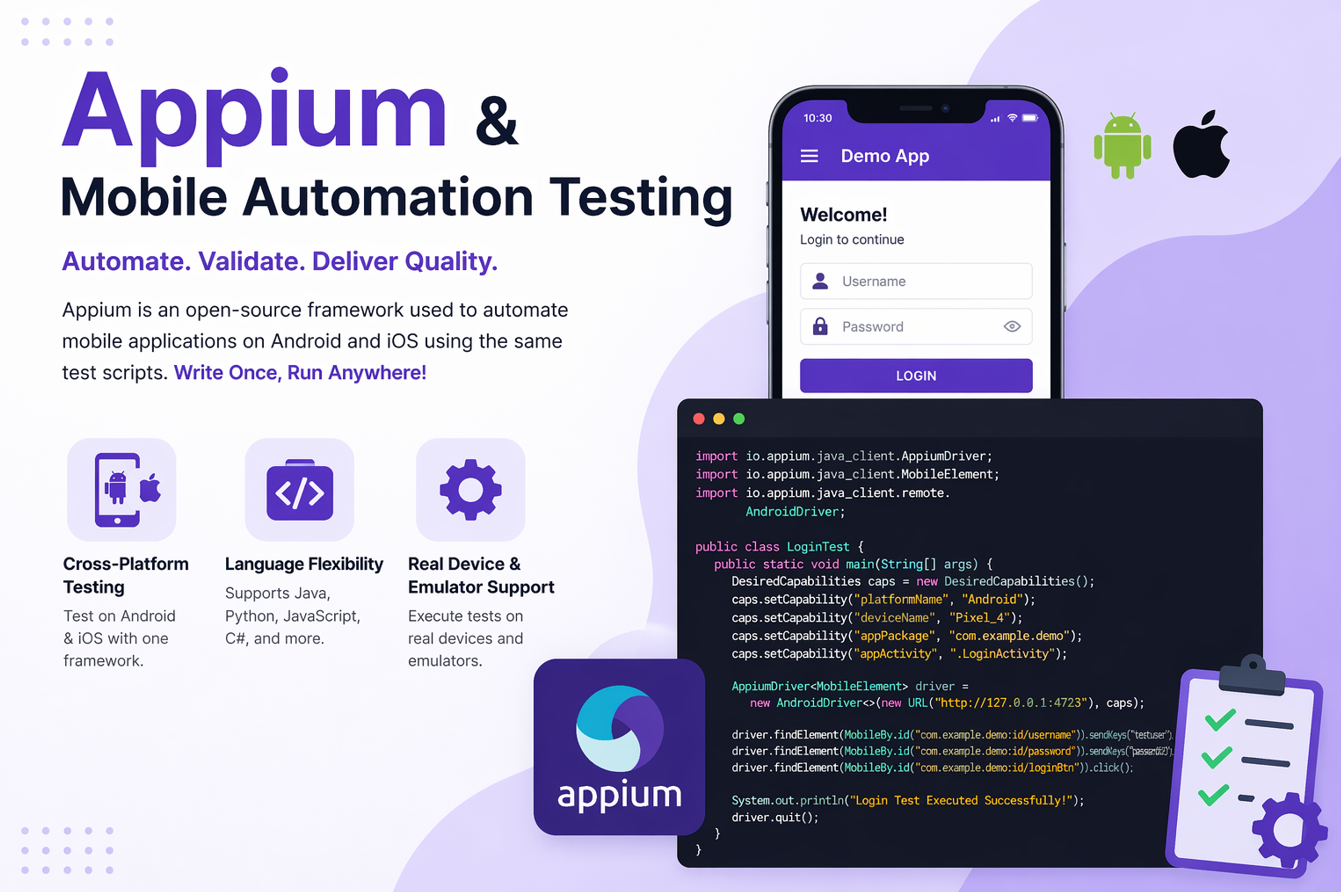
Mobile apps are now a core part of almost every business, so companies need testers who can build reliable automation scripts for Android and iOS platforms. Appium is one of the most in-demand tools for this because it supports cross-platform testing and fits well with real project workflows. This interview guide is designed to help you understand Appium concepts in a practical and simple way, so you can answer confidently and also apply the same knowledge while writing real automation scripts.
1) What is Appium, and why is it widely used for mobile automation?
Appium is an open-source automation framework used to test Android, iOS, and hybrid/mobile web apps. Its biggest advantage is that you can automate on real devices, emulators, and simulators using one WebDriver-based approach. Teams like it because they can reuse existing Selenium-style knowledge and write tests in familiar languages like Java, Python, or JavaScript. It is especially useful when you want cross-platform testing without rewriting everything for each OS.
2) How is Appium different from Selenium?
Selenium is mainly for web browser automation, while Appium is focused on mobile app automation. Appium can interact with native app elements, system popups, gestures, and mobile-specific capabilities. Under the hood, Appium also follows the WebDriver protocol, so Selenium users feel comfortable quickly. In short, Appium extends WebDriver concepts into the mobile ecosystem.
3) What do “native”, “hybrid”, and “mobile web” apps mean in Appium context?
A native app is built specifically for Android or iOS and installed from app stores. A hybrid app combines native shell + embedded web content (usually in a WebView). A mobile web app runs only in a browser like Chrome/Safari on a phone. Appium can automate all three, but locator strategy and context switching vary by app type.
4) What is desired capability in Appium, and why is it important?
Desired capabilities are key-value settings sent at session start to tell Appium what to automate. They include platform name, device name, app package/bundle ID, automation engine, and app path or app activity. Without correct capabilities, Appium cannot start the app session reliably. Think of capabilities as your test environment contract for launching the app under test.
5) Can you share a basic Appium setup example in Java?
Yes, below is a simple Android example showing capability setup and driver initialization. This is often your starting template before adding page objects and reusable utilities.
UiAutomator2Options options = new UiAutomator2Options()
    .setPlatformName("Android")
    .setDeviceName("Pixel_7_Emulator")
    .setAppPackage("com.demo.app")
    .setAppActivity(".MainActivity")
    .setAutomationName("UiAutomator2");

AndroidDriver driver = new AndroidDriver(new URL("http://127.0.0.1:4723"), options);
It helps create a stable session and confirms your server/device wiring is correct.
6) What are UiAutomator2 and XCUITest in Appium?
UiAutomator2 is the default Android automation engine used by Appium for modern Android versions. XCUITest is Apple’s automation framework used by Appium for iOS testing. These are platform-specific “drivers” that Appium talks to during test execution. Choosing the right engine is essential for compatibility, speed, and command reliability.
7) How do you locate elements in Appium effectively?
You can start with stable, unique locators such as accessibility ID or resource-id (Android) and accessibility labels (iOS). You should avoid XPath-heavy strategies unless needed, because complex XPath can be slow and brittle on mobile trees. You can use Appium Inspector to inspect hierarchy and validate locator uniqueness before coding. A strong locator strategy reduces flakiness more than any other test improvement.
8) What is Appium Inspector, and how does it help?
Appium Inspector is a UI tool that lets you view app element hierarchy and test locators live. You can click elements, inspect attributes, and generate locator candidates quickly. It helps debug why an element is not found and whether your locator is stable across screens. For beginners, it saves major time during script creation and troubleshooting.
9) How do you handle waits in Appium tests?
Mobile apps have animations, network delays, and lazy-loaded elements, so explicit waits are essential. Use WebDriverWait with expected conditions like visibility or clickability rather than fixed sleeps. Hard waits make tests slower and fragile when app speed changes across devices. A well-designed wait strategy improves both stability and execution speed.
10) How do you perform gestures in Appium (swipe, scroll, tap)?
Appium supports W3C actions and mobile commands for gestures. You can swipe by coordinates, scroll to text, long-press, or perform multi-action gestures when needed. For Android, helper methods using mobile: scrollGesture are commonly used in Appium 2 flows. Abstract gestures into utility methods so test steps stay readable and reusable.
11) How do you automate hybrid apps in Appium?
In hybrid apps, you first automate native screens, then switch to WebView context for web content. Use getContextHandles() to identify available contexts and switch using context("WEBVIEW_xxx"). After web actions, switch back to NATIVE_APP for native controls. Context awareness is critical; many failures happen when tests run in the wrong context.
12) What is context switching? Show a simple example.
Context switching means changing automation mode between native and web layers. Without switching, web elements inside WebView cannot be interacted with correctly.
Set<String> contexts = driver.getContextHandles();
for (String ctx : contexts) {
    System.out.println(ctx);
}
driver.context("WEBVIEW_com.demo.app");
// perform web actions
driver.context("NATIVE_APP");
Use logging so you can verify available contexts during runtime.
13) How do you handle mobile alerts and permission popups?
Permission dialogs are common in first-time app launch flows. For Android, you can locate permission buttons by text/id; for iOS, use alert/button locators or auto-accept capabilities if allowed. Keep this handling in a reusable helper so each test does not repeat popup logic. Ignoring permission handling is a common reason for early test failures.
14) How do you run Appium tests on real devices?
Enable developer options/USB debugging (Android) or proper signing/provisioning (iOS), then connect the device. Ensure the device is visible via adb devices (Android) or Xcode tooling (iOS). Set device-specific capabilities like udid and target app details. Real-device runs are crucial because emulator behavior often differs from physical hardware.
15) Why should we test on both emulator/simulator and real devices?
Emulators are fast, cheap, and good for early CI smoke checks. Real devices provide realistic network, performance, touch behavior, and OEM-specific differences. Relying only on emulators can miss crashes, rendering issues, and hardware-related bugs. A balanced strategy uses emulators for speed and real devices for confidence.
16) How do you structure a maintainable Appium framework?
Use Page Object Model (POM), utility layers, test data separation, and centralized capabilities/config. Keep test logic clean by moving common actions (login, gestures, waits) into reusable classes. Add robust logging, screenshots, and retry strategy for transient failures. A clean framework reduces maintenance cost as app features scale.
17) How do you handle multiple environments (QA, staging, prod-like)?
Store environment values in config files (YAML/properties/JSON) and load at runtime. Switch base URLs, credentials, and test accounts using command-line parameters or CI variables. Avoid hardcoding environment data inside test classes. Environment-driven design makes scripts reusable across release pipelines.
18) What is parallel execution in Appium, and what should you watch out for?
Parallel execution runs multiple tests/devices at the same time to reduce total execution time. You need unique ports, separate device IDs, and isolated test data per thread. Resource conflicts (same account, same device port) can cause random failures. Done correctly, parallelization significantly improves CI throughput.
19) How do you debug flaky Appium tests?
Start by checking locator stability, synchronization, device logs, and app performance logs. Capture screenshots and page source at failure to see the actual app state. Review whether failures happen on specific devices/OS versions only. Most flaky issues are caused by weak locators, timing gaps, or inconsistent test data.
20) How do you capture logs and screenshots for failures?
Use test framework hooks (like TestNG/JUnit listeners) to take screenshot on failure automatically. Store logs with timestamp, test name, and device info for faster triage. Also capture Appium server logs and adb logcat (Android) when needed. This evidence helps teams fix root causes faster instead of re-running blindly.
21) What are best practices for writing stable Appium scripts?
Prefer accessibility id and id-based locators, use explicit waits, and avoid unnecessary sleeps. Keep tests atomic, independent, and data-cleanup aware. Design scripts around user journeys but validate key checkpoints with clear assertions. Stability comes from disciplined framework design, not from adding more retries.
22) How do you integrate Appium with CI/CD tools?
Run tests from Jenkins/GitHub Actions/Azure DevOps with device farm or local grid setup. Use tags/suites to run smoke tests per PR and full regression nightly. Publish reports and artifacts (screenshots/logs/videos) for failed runs. This gives fast quality feedback and supports release confidence.
23) What is the role of cloud device farms with Appium?
Cloud providers offer many real devices and OS combinations without buying/managing hardware. You can run parallel tests at scale and validate behavior on diverse models quickly. This is useful for compatibility testing across fragmented Android ecosystems. It improves coverage while reducing infra maintenance overhead.
24) How do you test app install/upgrade/uninstall scenarios in Appium?
Use capabilities and setup scripts to install app versions before test execution. Run upgrade path checks from old build to new build and validate data/session persistence. Also test clean uninstall/reinstall to detect onboarding and permission regressions. These flows are critical for real-world release quality but often skipped by beginners.
25) What interview-ready Appium script example would you explain confidently?
A solid example is login + permission handling + navigation + assertion + screenshot-on-failure. It demonstrates capabilities setup, wait usage, locator quality, and reusable utility methods. Interviewers value structured automation thinking more than very long scripts. If you can explain why each step is designed for stability, you show practical maturity.
You can refer below short code snippets just for the understanding and better readability for given core flows.
1) Core Flow Covered
- Login with valid credentials
- Handle runtime permissions
- Navigate from Home to Profile
- Assert profile username
- Capture screenshot on failure
2) Base Test Setup
UiAutomator2Options options = new UiAutomator2Options()
    .setPlatformName("Android")
    .setDeviceName("Pixel_7_Emulator")
    .setAutomationName("UiAutomator2")
    .setAppPackage("com.demo.app")
    .setAppActivity(".MainActivity");

driver = new AndroidDriver(new URL("http://127.0.0.1:4723"), options);
wait = new WebDriverWait(driver, Duration.ofSeconds(15));
3) Login Page Method (POM)
public void login(String email, String password) {
    wait.until(ExpectedConditions.visibilityOfElementLocated(
        AppiumBy.id("com.demo.app:id/etEmail"))).sendKeys(email);
    driver.findElement(AppiumBy.id("com.demo.app:id/etPassword")).sendKeys(password);
    driver.findElement(AppiumBy.id("com.demo.app:id/btnLogin")).click();
}
4) Permission Handling Utility
By[] allowButtons = new By[] {
    AppiumBy.id("com.android.permissioncontroller:id/permission_allow_button"),
    AppiumBy.id("com.android.permissioncontroller:id/permission_allow_foreground_only_button")
};

for (By by : allowButtons) {
    try {
        new WebDriverWait(driver, Duration.ofSeconds(2))
            .until(ExpectedConditions.elementToBeClickable(by)).click();
    } catch (Exception ignored) {}
}
5) Navigation + Assertion
driver.findElement(AppiumBy.accessibilityId("Profile")).click();

String actualName = wait.until(ExpectedConditions.visibilityOfElementLocated(
    AppiumBy.id("com.demo.app:id/tvProfileName"))).getText().trim();

Assert.assertEquals(actualName, "Test User", "Profile name mismatch after login");
6) Screenshot on Failure
@AfterMethod
public void captureFailure(ITestResult result) {
    if (!result.isSuccess()) {
        File src = driver.getScreenshotAs(OutputType.FILE);
        FileUtils.copyFile(src, new File("test-output/screenshots/" + result.getName() + ".png"));
    }
}
7) testng.xml (Minimal)
<!DOCTYPE suite SYSTEM "https://testng.org/testng-1.0.dtd" >
<suite name="Mobile Suite">
  <test name="Login Flow">
    <classes>
      <class name="tests.LoginFlowPOMTest"/>
    </classes>
  </test>
</suite>
8) Maven Dependencies (Minimal)
<dependency>
  <groupId>io.appium</groupId>
  <artifactId>java-client</artifactId>
  <version>9.2.3</version>
</dependency>
<dependency>
  <groupId>org.testng</groupId>
  <artifactId>testng</artifactId>
  <version>7.10.2</version>
  <scope>test</scope>
</dependency>
Conclusion
If you prepare these Appium interview questions with hands-on practice, you will be ready not only for interviews but also for day-to-day mobile automation challenges. Focus on core areas like locator strategy, synchronization, framework design, real-device execution, and CI/CD integration. The stronger your fundamentals and script reasoning, the easier it becomes to build stable, scalable, and production-ready mobile automation suites.
Discover more from Newskart
Subscribe to get the latest posts sent to your email.

[…] can refer the short code snippets explained in Appium interview questions and answers section just for […]