


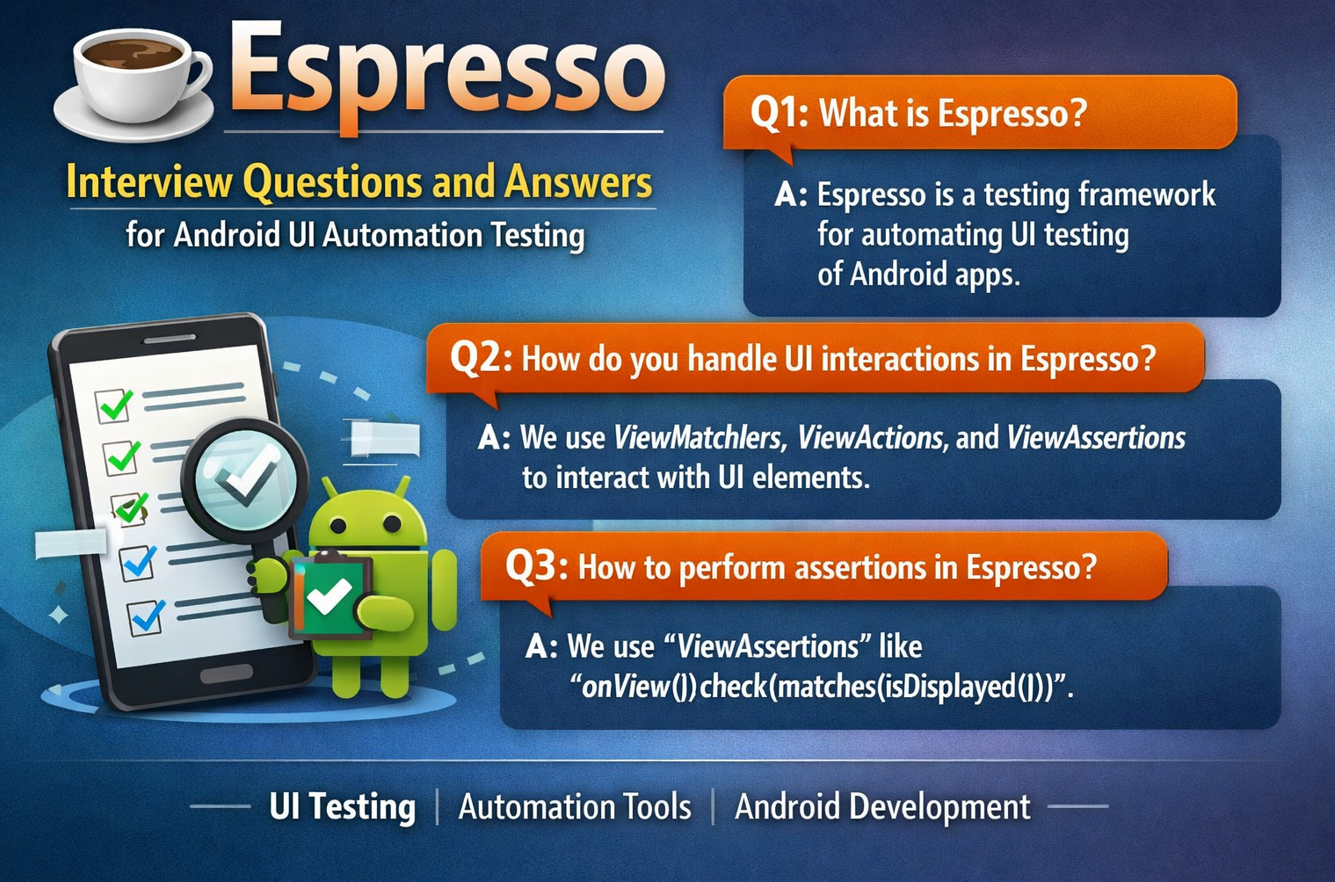
Espresso is an open source tool developed by Google for Android UI testing. It is developed mainly for Developers for automation testing but this tool can also be used by QA and Testers to test the native Android applications’ UI. These interview questions may basically targeted to developers but interviewer may also ask these questions to QA engineers also who are validating or testing the native Android apps.
Interviews are not only about remembering syntax and automation flows of the tool but Interviewers want to see whether you understand Android UI behavior, synchronization, test stability, and architecture-level test design. This guide is written in simple way so you can explain answers smartly in interviews. Every answer is practical, interview-ready, and focused on real automation work.
If you are preparing for Android QA or SDET roles, these questions will help you build both conceptual clarity and implementation confidence. Some short code snippets are also included so you can connect theory with execution.
1. What is Espresso, and why is it used for Android UI automation testing?
Espresso is Google’s Android UI testing framework that runs instrumented tests directly on device or emulator. It is designed to test app behavior from a user perspective, like tapping buttons, entering text, and validating UI results. Teams use Espresso because it is tightly integrated with Android tooling and provides reliable synchronization with the app’s main thread. This reduces flaky timing issues compared to many generic UI automation approaches.
2. How is Espresso different from UIAutomator?
Espresso is best for in-app UI testing where you control and validate views inside your own application process. UIAutomator is better for cross-app or system-level flows, such as interacting with notifications or settings screens. Espresso is generally faster and more stable for app-internal scenarios due to synchronization features. In interviews, say Espresso for depth inside app, UIAutomator for broader device-level coverage.
3. What does synchronization mean in Espresso, and why is it important?
Synchronization means Espresso automatically waits for the UI thread and AsyncTasks to become idle before performing the next action. This built-in waiting behavior prevents many race-condition failures where tests run faster than UI updates. It is one of the biggest reasons Espresso tests can be stable in CI when designed properly. Without synchronization, UI tests usually become flaky and hard to trust.
If you want to do iOS app UI automation then you can refer XCUITEST Interview QnA.
4. What are the key Espresso components you should know for interviews?
Core components include onView(), withId(), perform(), and check(). Matchers find UI elements, view actions simulate user behavior, and assertions verify expected outcomes. You should also know ViewMatchers, ViewActions, ViewAssertions, and IdlingResource for custom async waits. Mentioning these with practical examples gives a strong interview impression.
5. How do you locate elements in Espresso tests?
Elements are located using matchers such as withId, withText, withContentDescription, and matcher combinations like allOf. Strong locator strategy uses stable identifiers rather than fragile text-only matching. For reusable test suites, resource IDs and content descriptions are preferred for long-term maintainability. In accessibility-aware projects, content descriptions improve both testing and UX compliance.
6. Can you show a basic Espresso test example?
Yes. A simple login flow is a common interview demonstration. It shows typing, clicking, and assertion in one short test.
@RunWith(AndroidJUnit4::class)
class LoginTest {

    @Test
    fun validLogin_showsWelcomeMessage() {
        onView(withId(R.id.etEmail)).perform(typeText("user@test.com"), closeSoftKeyboard())
        onView(withId(R.id.etPassword)).perform(typeText("Pass@123"), closeSoftKeyboard())
        onView(withId(R.id.btnLogin)).perform(click())
        onView(withId(R.id.tvWelcome)).check(matches(withText("Welcome")))
    }
}
7. What is IdlingResource, and when should you use it?
IdlingResource is used when your app has background operations that Espresso cannot auto-detect, such as custom executors or network states. It tells Espresso when async work is still running and when UI is safe for next interaction. This avoids arbitrary sleeps and improves test stability. Use it for controlled waiting, not as a workaround for weak test design.
8. How do you test RecyclerView items in Espresso?
RecyclerView testing typically uses RecyclerViewActions to scroll to a position or item, then interact with child views. You can click specific rows, validate text, and ensure dynamic lists render correctly. Stable selectors and predictable test data are important because list order may vary. Good interview answers include both scroll action and assertion approach.
onView(withId(R.id.recyclerProducts))
    .perform(RecyclerViewActions.scrollToPosition<RecyclerView.ViewHolder>(5))

onView(withText("Product 6")).check(matches(isDisplayed()))
9. How do you handle Toasts, Dialogs, and Snackbar validations in Espresso?
Dialogs and Snackbars are usually easier because they are part of view hierarchy and can be matched directly. Toasts may require root matchers because they are displayed in a separate window context. For interview answers, explain that root matching and proper synchronization are key. Also mention that over-testing transient UI text may increase flakiness, so validate business impact where possible.
10. How do you write maintainable Espresso tests in large projects?
Use the Page Object Model (or screen object pattern) so locators and actions stay centralized. Keep tests business-readable by abstracting repetitive low-level interactions. Reuse helper methods for login, setup, and common assertions. This structure reduces duplication and makes refactoring easier when screens change.
11. How does Espresso fit into CI/CD pipelines?
Espresso tests are usually executed in CI using Gradle tasks on emulators or cloud device farms. Teams run smoke suites on pull requests and broader regressions nightly or before release. Reports are published to build logs and dashboards for quick triage. Reliable CI execution requires stable test data, deterministic environment setup, and proper device configuration.
12. What are common reasons for flaky Espresso tests, and how do you fix them?
Flakiness often comes from unstable data, animations, hidden keyboard overlap, poor locators, and unmanaged async operations. Fixes include disabling animations in test environment, using IdlingResource, improving selectors, and resetting test state before each run. Avoid Thread.sleep because it hides timing issues instead of solving them. Stable automation comes from design discipline, not temporary waits.
13. How do you test deep links and navigation flows in Espresso?
You can launch activities with test intents and verify expected screen state after navigation. For deep links, build intent data and validate destination page, UI elements, and access controls. This is important for apps with marketing links, push notifications, or external redirect flows. A strong answer includes both navigation validation and negative-path checks.
14. How do you test apps using Jetpack Compose with Espresso-based strategy?
For Compose-first apps, use Compose UI testing APIs as primary, while Espresso may still be used for hybrid View + Compose screens. Interviewers like candidates who understand modern Android stack evolution. Mention that test strategy should match UI technology rather than forcing one framework everywhere. Balanced usage gives better reliability and maintainability.
15. What is a good interview answer to “Why Espresso for Android UI automation?”
A strong answer is that Espresso provides tight Android integration, reliable synchronization, and fast in-app UI testing with readable test code. It helps teams build maintainable regression suites when combined with screen-object design and CI execution. It is especially useful for validating critical user journeys in native Android applications. In short, Espresso offers strong stability and practical scaling for Android UI automation.
16. How do you manage test data for Espresso tests?
Good data strategy uses controlled fixtures, API stubs/mocks where appropriate, and environment reset before execution. Keep test users and entities isolated to avoid cross-test interference in CI. For repeatable outcomes, avoid depending on live production-like random data unless that is the test goal. Predictable data is one of the strongest foundations for stable Android UI automation.
17. What should you validate beyond “element is displayed” in Espresso tests?
Professional tests should validate business results, not just UI visibility. For example, check state changes, persisted values, API-backed updates, and user-permission outcomes. This prevents false confidence where a label appears but core functionality is broken. Interviewers value candidates who connect UI checks with real product behavior.
18. How do you structure an Espresso framework for enterprise projects?
A practical framework includes layers for screen objects, test utilities, environment setup, data builders, and reporting hooks. Keep assertions clean and reusable, and separate test intent from locator-level details. Add tagging or grouping to run smoke, regression, and module-specific suites independently. This structure improves parallel team contribution and long-term maintainability.
Conclusion
Espresso interviews become much easier when you explain practical testing decisions with clarity. You should focus on synchronization, locator strategy, modular design, CI readiness, and business-level assertions. These points make your answers sound like real project experience instead of textbook repetition. Use this guide to rehearse in your own words, and you will be far more confident in Android automation interviews.
Discover more from Newskart
Subscribe to get the latest posts sent to your email.

[…] can refer Android UI Automations for Android app automation […]